
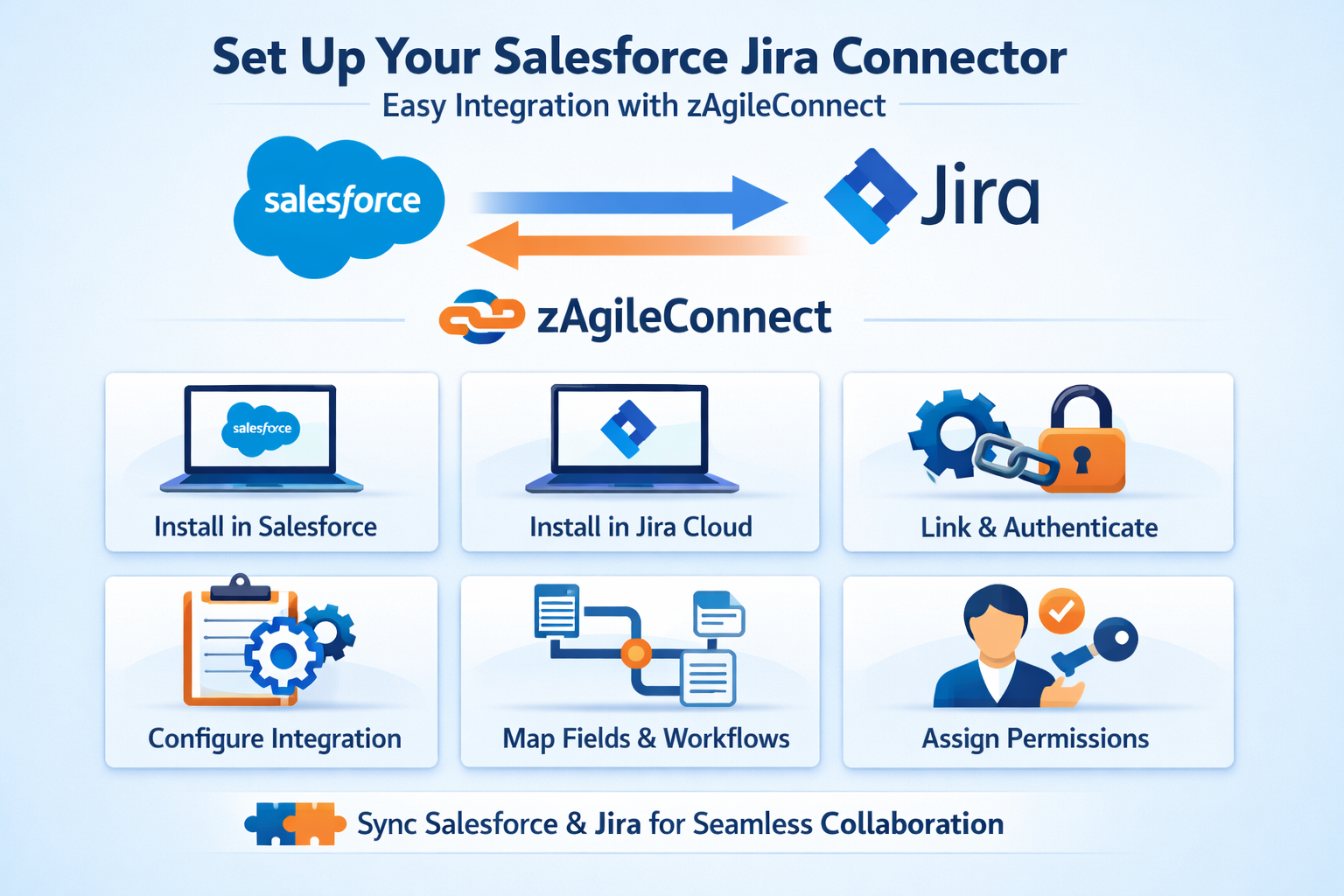
How to Set Up a Salesforce Jira Connector in 5 Steps (Step-by-Step Guide with zAgileConnect)
If your support and engineering teams struggle with disconnected workflows, a Salesforce Jira connector can bridge the gap. With tools like zAgileConnect, you can enable real-time collaboration, bi-directional sync, and seamless issue tracking between Salesforce and Jira.
This quick guide walks you through how to easily and quickly install and configure a Jira Salesforce integration using zAgileConnect in < 60 minutes.
Why Use a Salesforce Jira Integration?
A modern Salesforce Jira connector helps teams:
-
Sync cases and issues across platforms
-
Improve collaboration between support and engineering
-
Track Jira issues directly from Salesforce
-
Share comments, attachments, and updates in real time
Meet the Prerequisites
Before installing your connector, make sure:
-
You have admin access to both Salesforce and Jira
-
The required permissions and licenses are available (zAgileConnect licenses not needed for sandbox environments)
-
You’re ready to install apps in both environments
These prerequisites ensure a smooth setup and configuration process. (zAgileConnect Installation Prerequisites)
Step 1: Install the Salesforce Package
Start by installing the zAgileConnect package from Salesforce AppExchange.
This package enables:
-
Jira issue visibility and Jira actions inside Salesforce
-
Creating, Searching, Linking, Updating, and Tracking Jira Issues from within Salesforce objects (Case, Opportunity, Account, etc.)
-
Workflow-level integration between systems
Step 2: Install the Jira Cloud Add-On
Next, install the zAgileConnect add-on in Jira Cloud.
This step is critical because the connector works across both platforms – Salesforce and Jira, and makes API requests between the two.
Step 3: Connect Salesforce and Jira
Once both apps are installed:
-
Enable connectivity between Salesforce and Jira
-
Configure authentication between the two systems
Authentication ensures secure communication and allows data to flow between platforms. (Enabling Connectivity between Salesforce and Jira)
Step 4: Configure Your Salesforce Jira Connector
After connecting the systems configure zAgileConnect:
-
Map Salesforce objects (like Cases) to Jira issues
-
Define which fields sync between platforms
-
Set defaults for Jira project, issue type, and priority
-
Configure permissions and user access
Proper configuration ensures your Salesforce Jira integration aligns with your business workflows.
Step 5: Assign Permissions & Enable Users
Finally:
-
Assign zAgileConnect permission sets in Salesforce
-
Enable Jira access for Salesforce users (if needed)
This step ensures your teams can actively use the connector.
What You Get After Setup
Once configured, your fully functional out-of-the-box Salesforce Jira connector enables:
-
Creating, Updating, Searching, and linking Jira issues from within Salesforce
-
Viewing Jira Issue updates inside Salesforce
-
Sharing comments and attachments across teams
-
Faster resolution and improved customer experience (Atlassian Marketplace, Salesforce AppExchange)